
File Uploads
Uploading audio files is one of the crucial building blocks that will enable you to create and manage all of your projects on SoundMint. This guide walks you through the simple process of getting your audio into your file library.
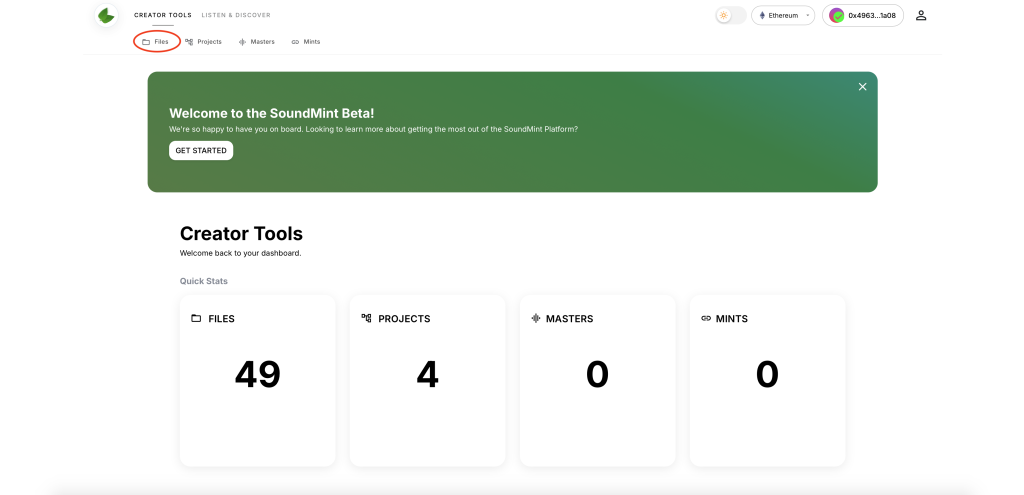
Step 1: Access Creator Tools
Navigate to the Creator Tools section and select the FILES option from the menu.
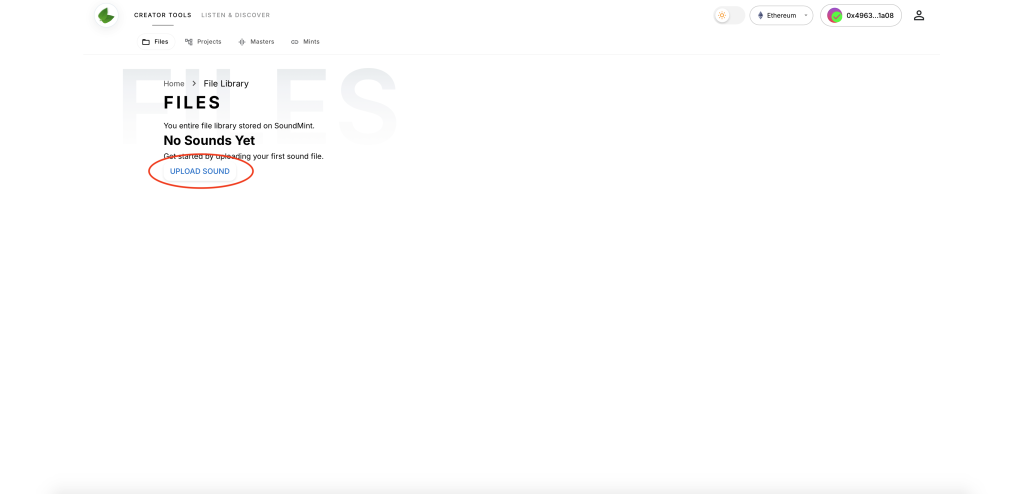
Step 2: Open File Library
Once you have accessed your FILE LIBRARY, click on the UPLOAD SOUND button to begin the upload process.
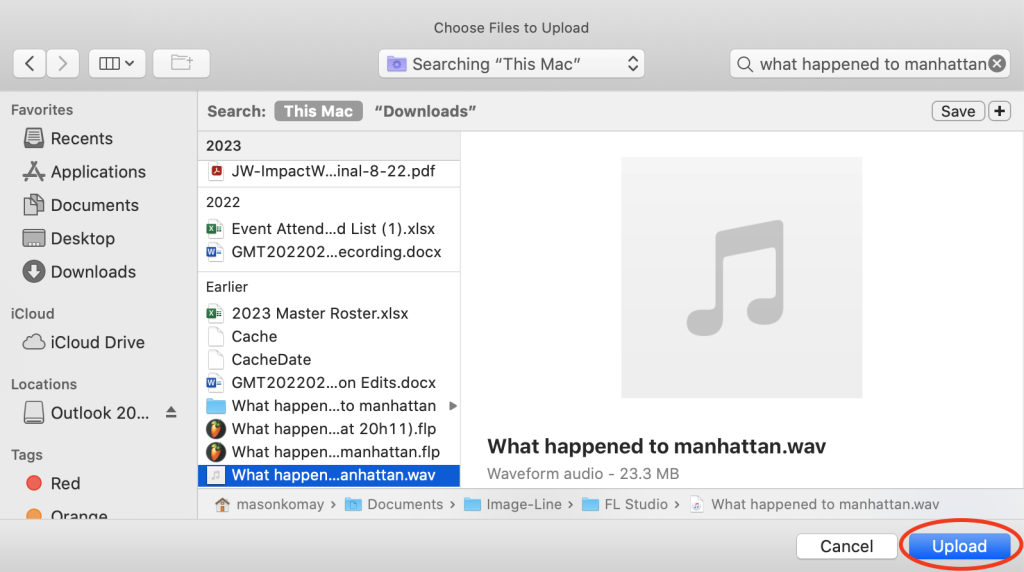
Step 3: Select and Upload File
Browse your device and select the desired audio file. Supported formats include:
- Audio: MP3, WAV, FLAC, AAC, AIFF, OGG
- Recommended: WAV or FLAC for lossless quality
Click the UPLOAD button to begin the upload.
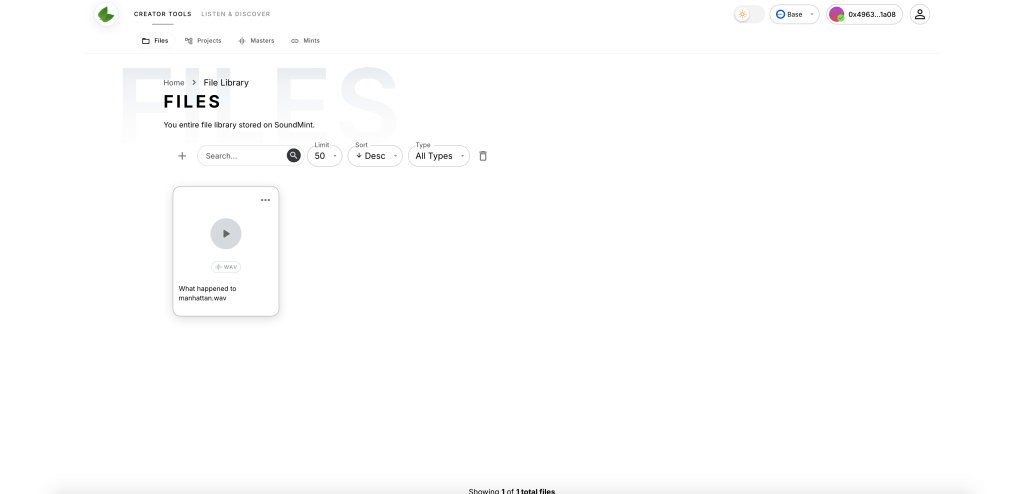
Step 4: Confirm Upload Completion
The audio file enters the upload queue and becomes accessible in your file library once processing completes. You'll see a confirmation when your file is ready to use in projects.
Now that your files are uploaded, you can create a project to organize them or invite collaborators to work together.